
Depending on the lecture, the streaming service used may differ.
Please check the course details page for the services that will be used for streaming.

To take the online lectures, you need to register and log in to the "TOYO Japanese Language Program".
Also, please make sure that the audio function of your computer and peripheral devices such as headphones and microphones operate normally by the day of the lecture.

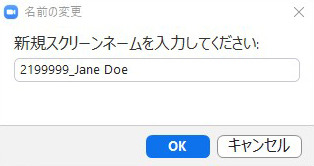
For the name (display name) to be set in the distribution service, please set “your membership number (7 digits) _name”. This is required when issuing the certificate of completion. If you have entered the wrong information or forgot to set it, please re-enter the room and set the correct name (some courses do not provide a certificate of completion).
FAQ

Cisco Webex PC

How to participate using a browser. Account login is not required.
For Desktop App : Cisco Webex Help center

Recursion, stop!

If you have any questions, such as not being able to follow the procedure, please check the FAQ first.
If you have any questions about streaming services, apps, etc., please check the Cisco Webex official website.

Cisco Webex Smartphone/Tablet

*Please be sure to install the dedicated app by the day. Account login is not required.
*This page introduces the procedure for attending lectures on an iPhone. Please refer to the Cisco Webex Help center for other models.

Recursion, stop!

If you have any questions, such as not being able to follow the procedure, please check the FAQ first.
If you have any questions about streaming services, apps, etc., please check the Cisco Webex official website.

ZOOM PC

How to participate using a desktop App. Account login is not required.
For your browser : ZOOM Help Center

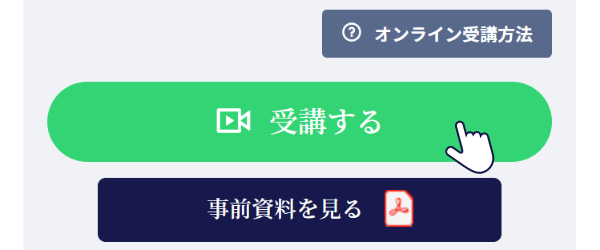
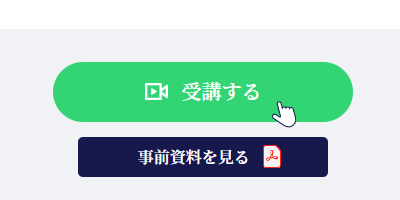
Open the course details page and click the "Attend" button.

If there is no "Attend" button, please check if you are logged in.
If you are logged in but it is not displayed, please check if you have completed the pre-questionnaire from the member page.

The "Attend" button cannot be clicked until the day of the lecture. Also, even if you click it, the streaming will not start until the start time.

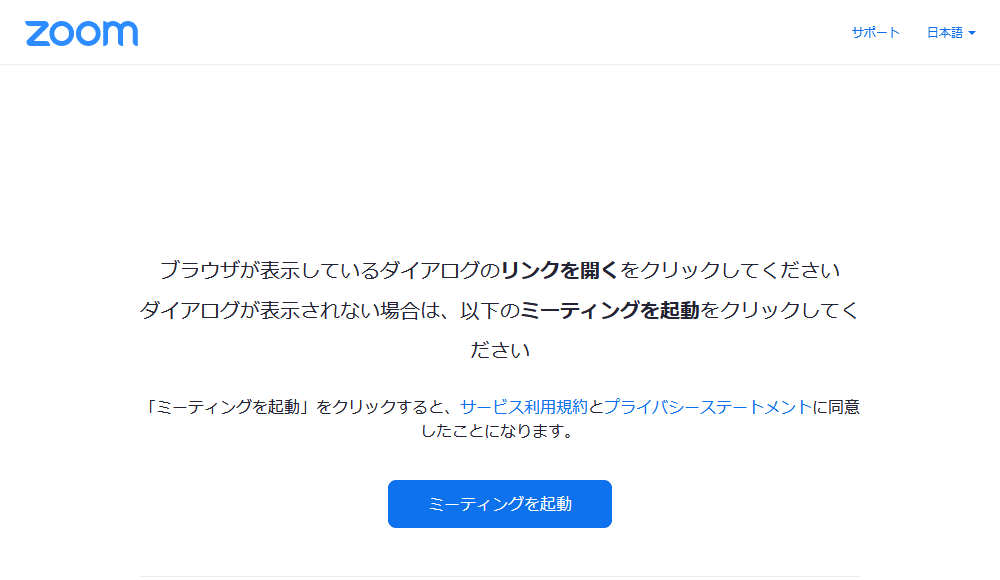
The ZOOM page will open.

When the ZOOM page opens, a dialog will be displayed automatically. If it doesn't appear automatically, click the "Launch Meeting" button on the page.

Please wait until you are allowed to enter the room.

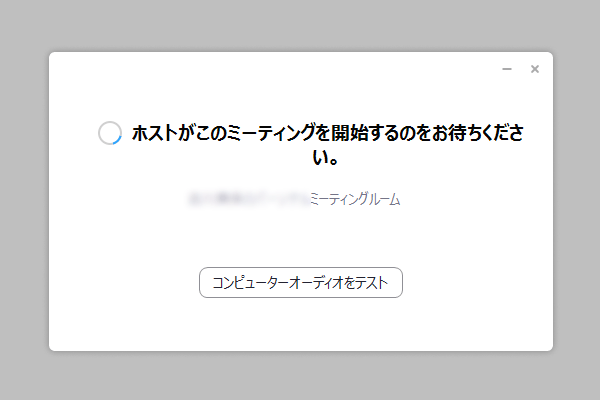
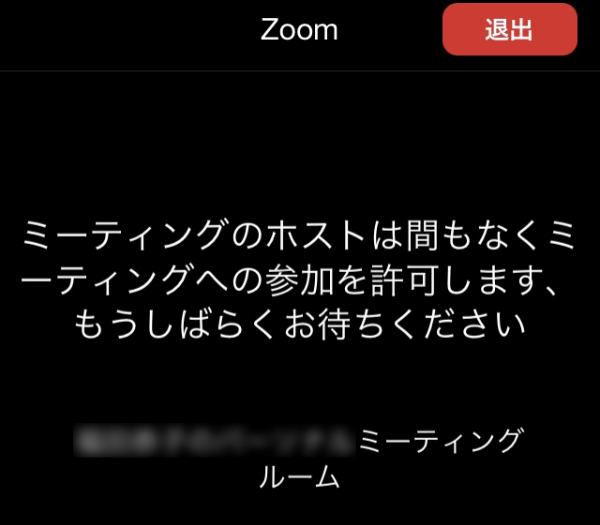
When the lecture starts, the message "Please wait, the meeting host will let you in soon." will be displayed, so please wait for a while until the instructor allows the participants to enter the room.

After entering the room, change your display name to your member number (7 digits).

Click on the "Participants" tab at the bottom of the screen, and place the curso on your display name.

Click on the "Details" button, and enter "your membership number (7 digits) _name" in the "Change Name" field.

You can set your display name ( "your membership number (7 digits) _name") in advance. For details, please refer to the ZOOM Help Center.

If you have any questions, such as not being able to follow the procedure, please check the FAQ first.
If you have any questions about the streaming service or ZOOM, please check the ZOOM official website.

ZOOM Smartphone/Tablet

*This page introduces the procedure for attending lectures on an iPhone.
For other models, please refer to the ZOOM Help Center.

Open the course details page and click the "Attend" button.

If there is no "Attend" button, please check if you are logged in.
If you are logged in but it is not displayed, please check if you have completed the pre-questionnaire from the member page.

The "Attend" button cannot be clicked until the day of the lecture. Also, even if you click it, the streaming will not start until the start time.

The ZOOM app will launch.

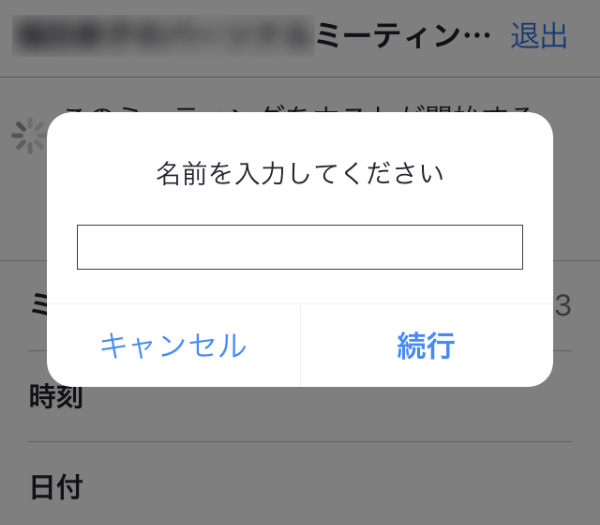
After the screen transition, enter "your membership number (7 digits)_name" along the dialog.

Please wait until you are allowed to enter the room.

When the lecture starts, the message "Please wait, the meeting host will let you in soon." will be displayed, so please wait for a while until the instructor allows the participants to enter the room.

If you have any questions, such as not being able to follow the procedure, please check the FAQ first.
If you have any questions about the streaming service or ZOOM, please check the ZOOM official website.